If no alerts reach you, this is almost always why
To alert you with the app closed, the system has to let it wake up, and many phones stop it to save battery. The app detects your phone's manufacturer and gives you the specific steps for that phone, with a button that opens the system screen where it is changed.
Go to the battery section
 Adding a product
Copy the address of the product page in the shop and paste it into the app, or share it from your browser. Lisvaro reads the price on that page: it does not search for products or suggest shops. When you add it you choose what to do with it: track its price or save it to the wishlist. If the page offers several options —sizes, colours, flavours—, pick the one you want to follow; if you do not, the app tells you which one it took.

 Sharing, both ways
There is no need to copy and paste addresses. While you browse a shop —in your browser or in the shop’s own app— use “Share” and pick Lisvaro: it opens with the address already filled in and you only have to say whether you want to track its price or save it. It works from anywhere with a link, including a message someone sent you. And the other way round: from a product page, «Share» sends its name, the price that was read together with the date it was read, and the shop link. At the end a line is added with the name of the app and its address, so whoever receives it knows where it came from. Your note never travels.
 The wishlist
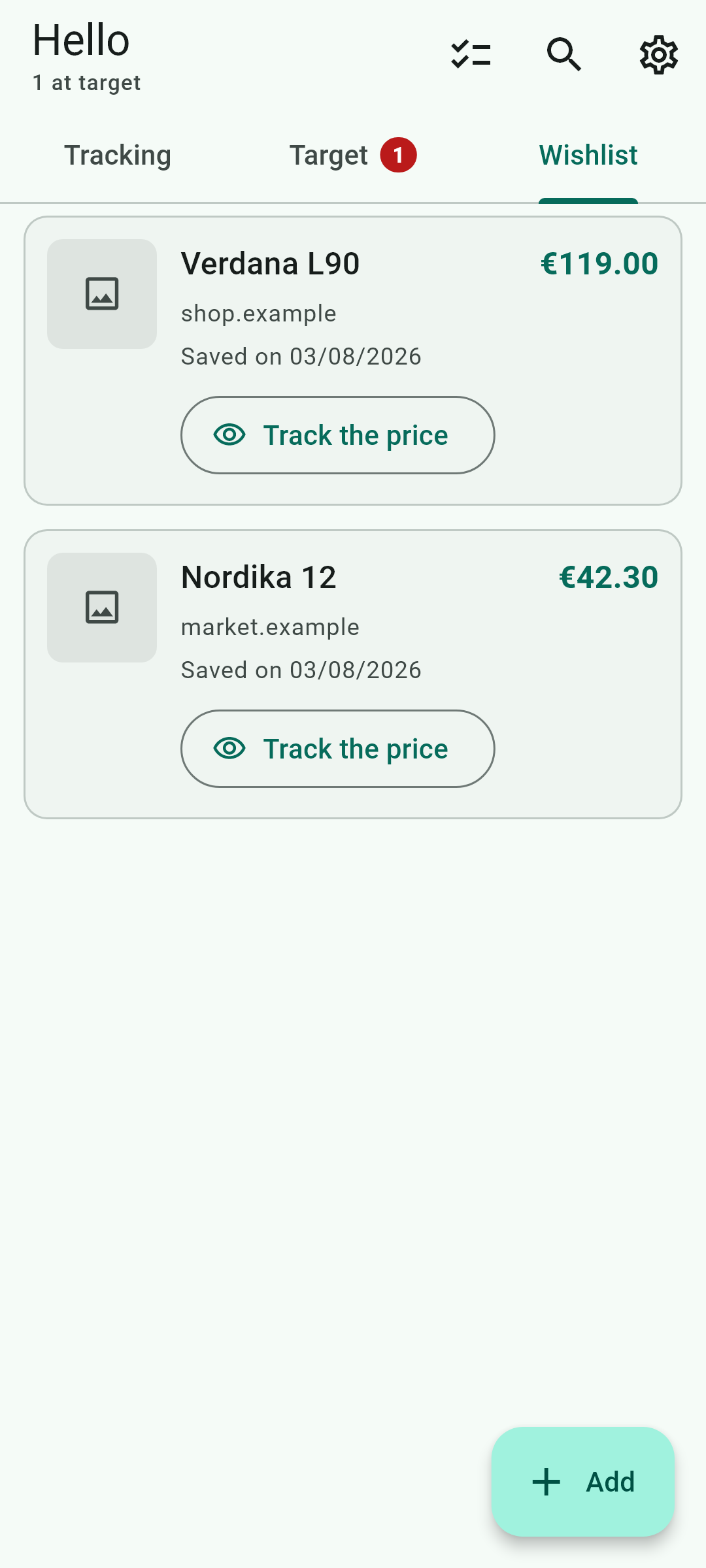
Not everything you care about needs watching. When you add an address you can save it to the wishlist instead of tracking its price: it keeps its photo, its name and the price it had that day, and is never checked again. When you decide to watch it,  moves it to tracking. On any item,
  marks it in the wishlist without stopping the tracking, and stops watching it without deleting it. Saved items do not count towards the number you can track.
 Price-drop alerts
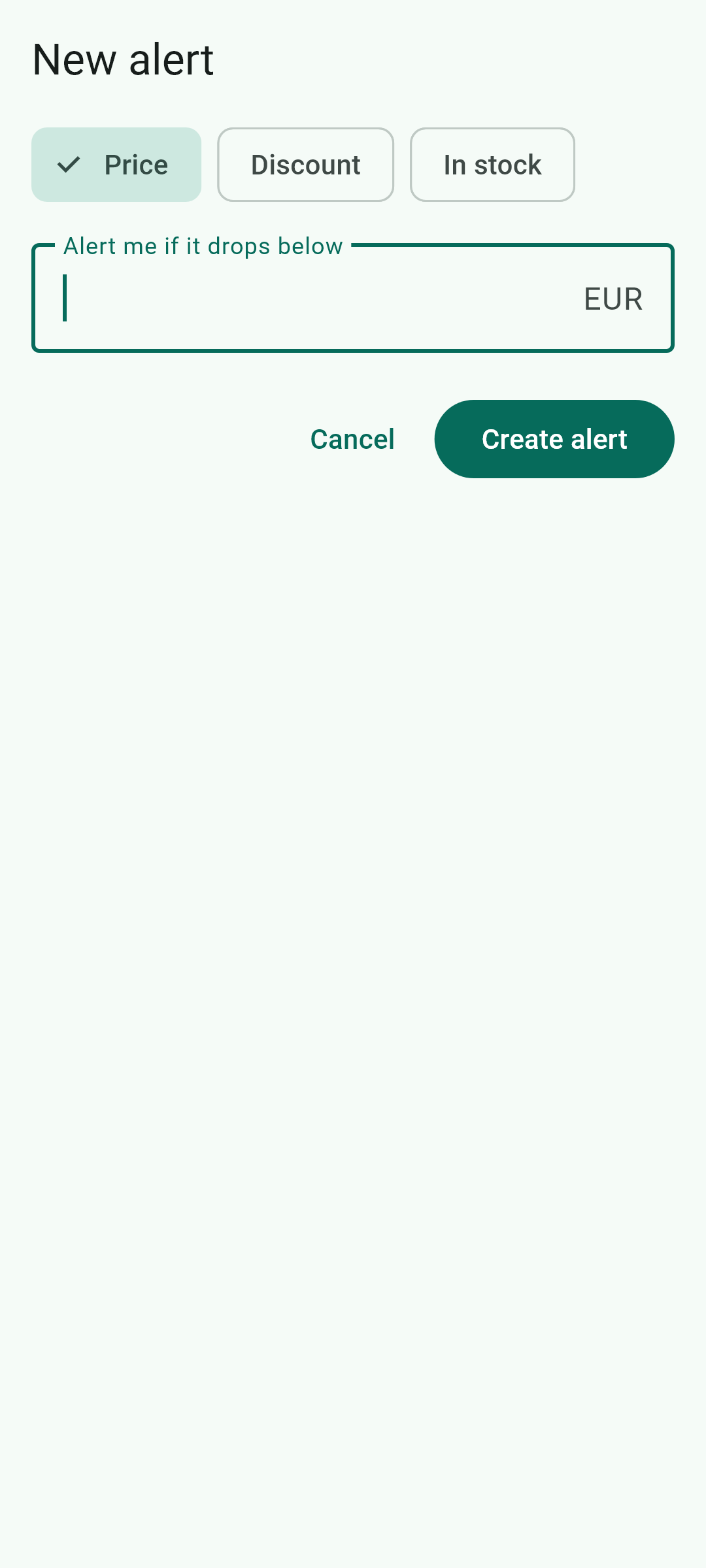
Each product can have several alerts. A price alert fires when the price reaches the figure you set. A discount alert fires when the percentage is reached, and you can measure it against the highest price of the last 30 days — the criterion of the European rules, which is not fooled by an inflated crossed-out price — or against the previous price the shop advertises, which fires more often. When an alert is met, your phone notifies you even with the app closed: the notification appears over the screen, and tapping it opens that product. Whether it makes a sound is up to you in the app's settings; the tone is the one the system has assigned to the app. In the list, that product's card also turns green for as long as the price keeps meeting the alert: the notification arrives once, the green is what still tells you three days later.
 Back-in-stock alerts
A sold-out product doesn't get any cheaper, so waiting for a price drop leads nowhere: what you can ask for is to be told when it comes back. Besides the price and discount alerts, every product can have an availability alert, which fires as soon as the shop puts it on sale again. If you are tracking one particular option or flavour of a page that has several, it is that one's availability that gets checked, not the page as a whole. The alert arrives once; if the product sells out again, it is armed to tell you the next time. Bear in mind that price alerts don't look at stock: a cheap sold-out product still meets its threshold.
 Target reached
The  tab gathers the items that right now meet one of their alerts. They come and go on their own: if the price goes back up, the item disappears from there without you doing anything. When something arrives that you have not seen yet, the tab pulses until you open it. If you have “reduce motion” switched on, it does not pulse: the number stays marked in red.

 The order of your list
Under “Tracking” items appear in whatever order you like: press and hold one and drag it elsewhere, and that order is kept on the phone. With  you can pin one to the very top, and there it stays no matter what. With nothing pinned, items that have reached their target are shown at the top while the price holds, and return to their place as soon as it no longer does; until you drag anything, they run from newest to oldest.

 Your own note
A product’s name is the one the shop publishes and cannot be changed, so you always know which item you are looking at. Yours goes separately, with  : a note only you see, shown under the name and in the list. It is there to recognise an item the shop calls “House on Altozano Street” and you think of as “the one in Fuensanta with a garden”. It is never sent anywhere and never used for anything automatic.

 Automatic checking
The app checks prices on its own, even while closed. You can set the frequency for each item, or for all of them at once from the app's settings: anything from once an hour to once a day. At least one hour always passes between two checks of the same product, out of courtesy to the shop and because checking more often spends battery and data without almost ever finding anything new; some shops require longer, and the item tells you so.

 History and chart
Every reading is stored on the phone and drawn on the item’s page. That history is what makes a real 30-day discount possible. Tap the chart to open it large  : there you can pick the range, run your finger along it to see each day’s price, and see how far it is from your target. If there are too many readings to draw one by one, they are grouped by day —the line marks the closing price and the band, how far it moved— and it says so underneath. You can also see the figures as a list. From the item you can open the shop’s page to buy
  .
.

 When a shop cannot be read
Some shops stop publishing the price, change the page or refuse the request. The app explains what happened and, instead of insisting, spaces the attempts out to as little as once a day; it goes back to the normal rhythm as soon as a reading succeeds. If the shop wants to check that there is a person behind the request, the app shows it to you so that you answer it: it never does so on its own.
 Battery and background
To warn you while the app is closed, the system has to let it wake up. Many phones stop it to save battery, and then there are no checks and no alerts. The app guides you through granting that exception, and warns you if it has been unable to work for too long.

 Your data
There is no account and no sign-up: your items, their history, your alerts and your notes live on this phone, not on any server of ours. For each item the app also keeps what the shop publishes openly —its description and its rating— so you can recognise it months later; it is never used for anything automatic. If you have written in Settings how you want the app to address you, that name is kept here like everything else: it is only used to greet you in your list, it never goes to any shop and it never appears in alerts. The only connection to a server of ours is the one that asks permission to read eBay listings, and it carries nothing about which products you follow. Product images are off by default; if you turn them on, they load from the shop’s website.

 Changing phone without losing your history
The most valuable thing in this app is the history it builds up month after month, and losing it when you change phone would be a shame. Android can include the app's data in the backup you have set up in your Google account, so when you get a new phone or reinstall, you get your list, your history and your alerts back exactly as they were. That copy is yours and goes to your Drive: we do not see it, we do not receive it and we cannot access it. To check that it is on, look in Android's settings, under Google › Backup. And if you would rather it did not happen, you can turn it off right there: the app works the same, only then its data really does disappear for good when you uninstall it.
 Your own backup, wherever you want
Besides Android’s automatic backup, in  Settings you can save your own whenever you like. “Save a backup” writes a file with your items, their history, your alerts and your categories, and lets you choose where it goes: your Drive, this phone, a card or anywhere else you have. The app never enters your Drive and never asks for an account; it just hands the file to Android’s picker and you decide. “Restore a backup” does the opposite, and it is worth knowing that it **replaces** what you have now: before doing it, it tells you how many items you have and how many the backup brings, so you can see whether you picked the wrong file, and it keeps a copy of what was there just in case. When it finishes you have to close Lisvaro and open it again.
 If you write to us about a problem
The app keeps a log of what it does: when Android woke it up, what it checked and what failed. It is under Settings › App log and it is copied whole with one button. Paste it into your message and the problem is diagnosed in a minute.
The log lines are in Spanish in every language: it is technical text that you copy and send as it is.

The same help, inside the app
These fifteen sections are also on the phone, under Settings › Help and information. It is the same text: if one day they differ, the one in the app is the one that counts.

The app's icons
The same ones you see on screen, with the exact name the app gives them.
Buttons

Add
Add a product. It is the floating button on the list.
Move to the wishlist
Marks the item in the wishlist. It marks, it does not move: an item can be in the wishlist and still have its price watched.
Pin to the top
Nails the item to the very top of the list, whatever happens.
Stop tracking the price
Watch or stop watching the price, without deleting the item.
Add a note
Your note on the item: the one only you see, separate from the name the shop gives it.

Alert me when…
The item's alerts. Each product can have several.
Expand
Opens the chart full size.
Target
The tab for whatever is meeting its alert right now.

Stop tracking
Deletes the item and its history.
Settings
Opens the settings.
View in the shop
Opens the product page in the shop, to buy.

Search
Opens the search, which filters among your own items.

Select items
Starts multiple selection, to act on several items at once.

Share
Shares the product with the price you are looking at.

Check now
Checks the price right now.

Category
The item's category, and how to change it.
Copy it to send
Copies the whole log so you can send it.
Signals the screen shows without naming them